
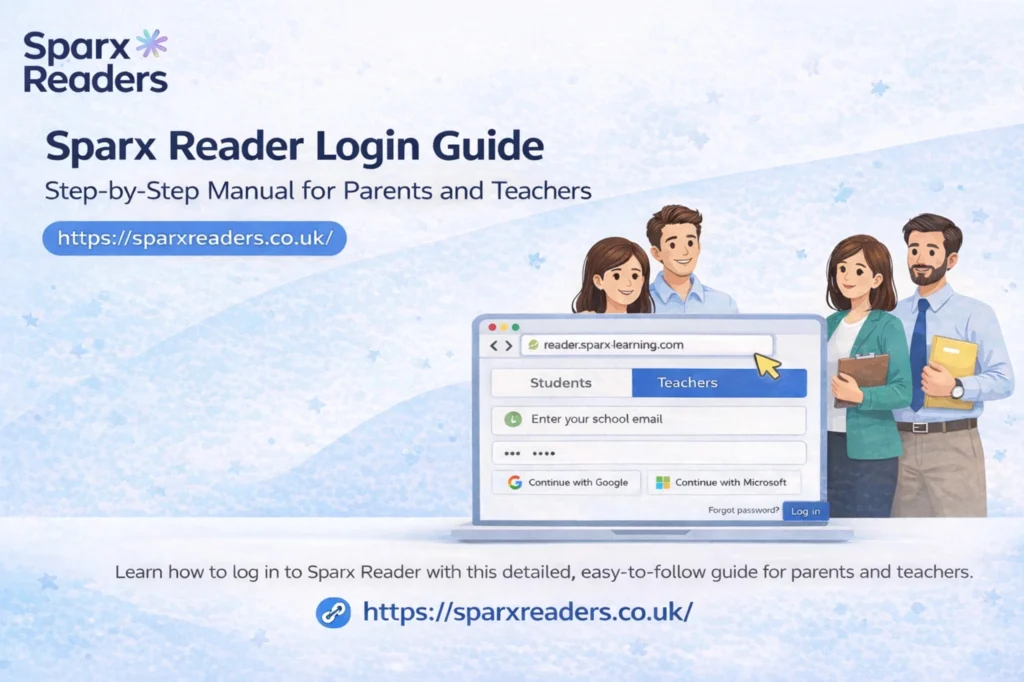
Open the official Sparx Reader site at reader.sparx-learning.com, select your school, and log in using the credentials provided by your school or via Single Sign-On if your school uses it. Teachers receive a welcome email to set a password, while parents access reading updates and homework monitoring through secure links sent to their email. These steps are fixed across schools and form the only valid route into Sparx Reader.
This Sparx Reader login guide focuses strictly on access. It explains what parents and teachers must do at each stage, what usually blocks login, and how those issues are resolved using the platform’s actual processes.
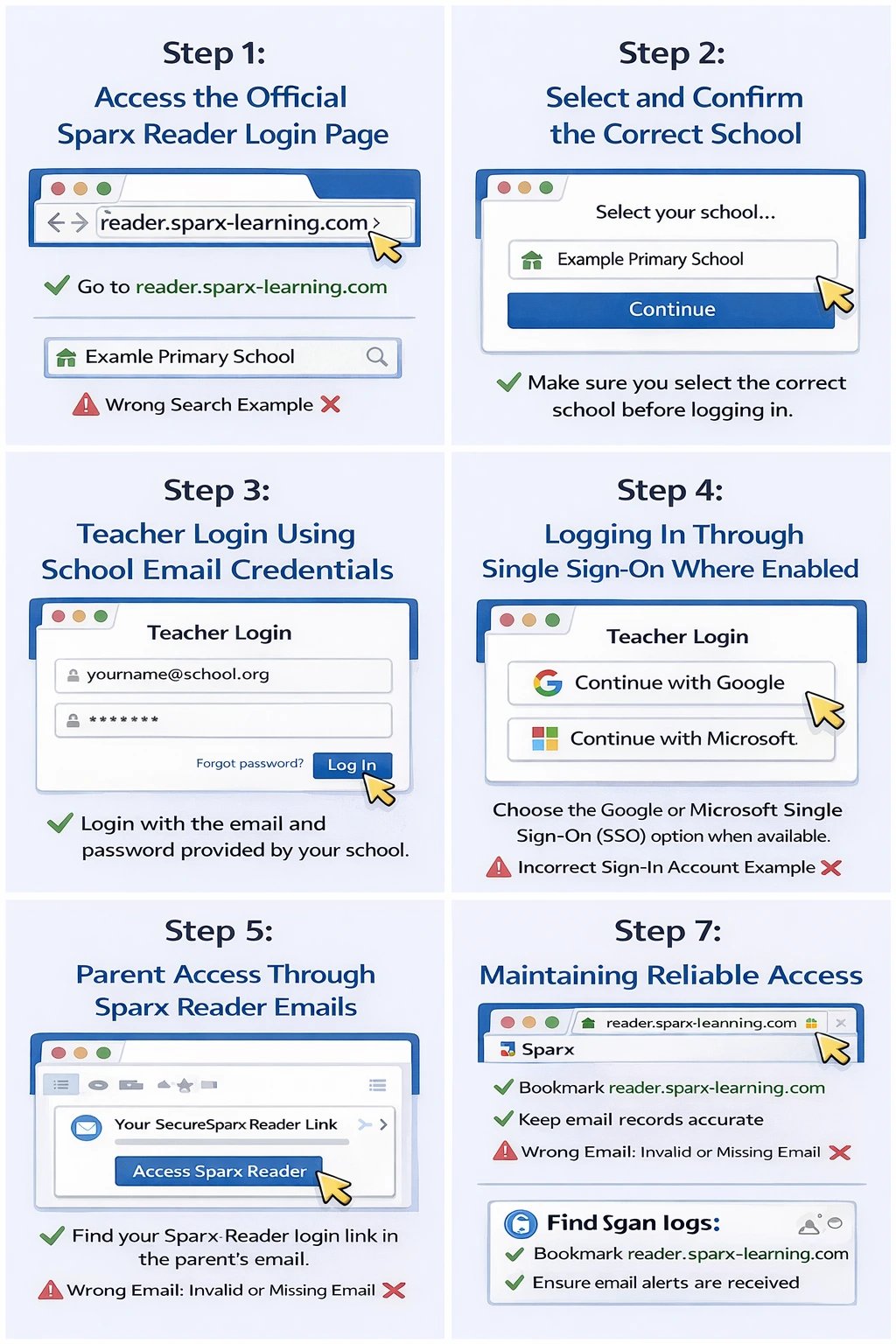
Step 1: Access the official Sparx Reader login page
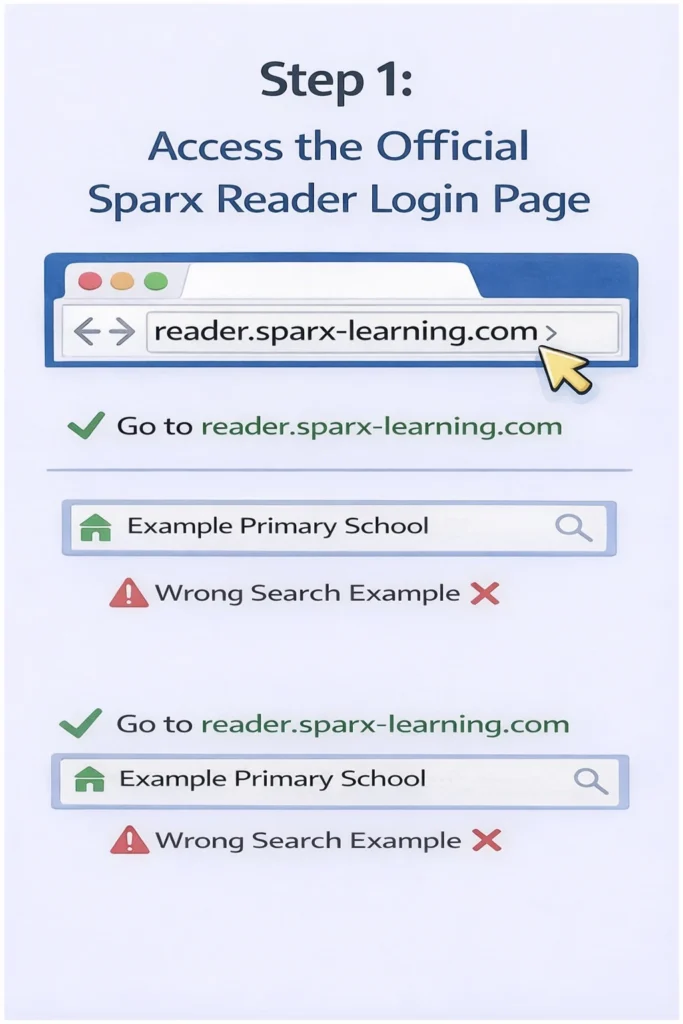
Parents and teachers must always begin at reader.sparx-learning.com. This is the only login page that connects to school-specific Sparx Reader accounts. If a school provides a direct login link, that link leads to the same page but with the school already selected.
If the page opens without asking for a school or redirects elsewhere, close it and return to the official Reader address. Login failures commonly start when the wrong page is used.
Step 2: Select and confirm the correct school sparx reader login
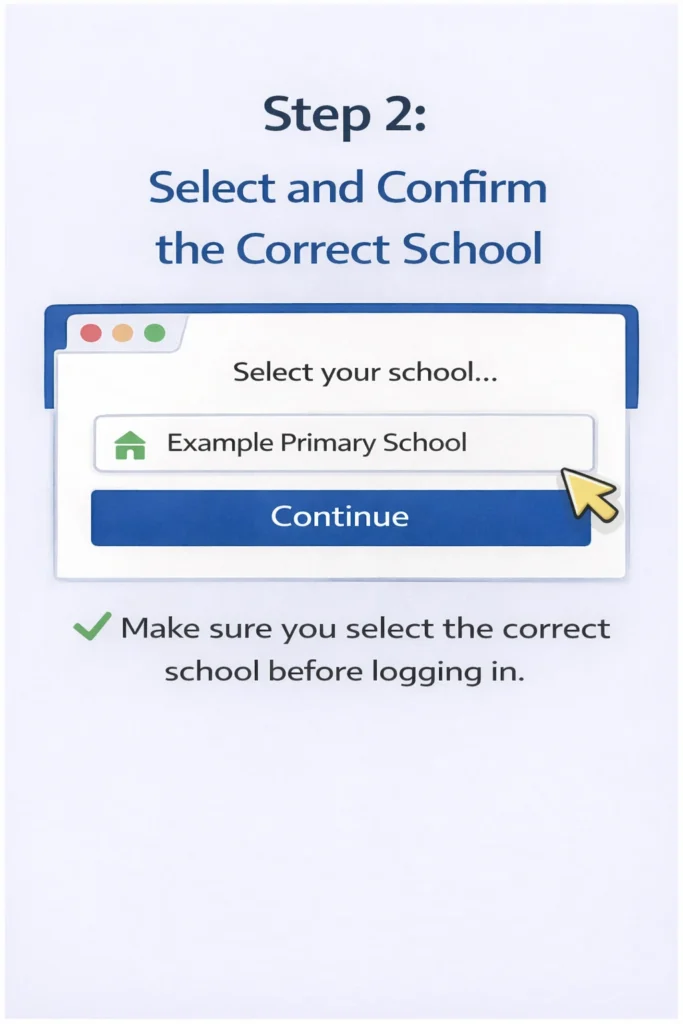
After opening the login page, Sparx Reader requires school selection. This step links the login attempt to the school’s data. Entering correct details without selecting the right school will always fail.
Parents supporting children at different schools and teachers working across sites should verify the school name shown on screen before entering any details. If the wrong school appears, change it immediately and restart the login.
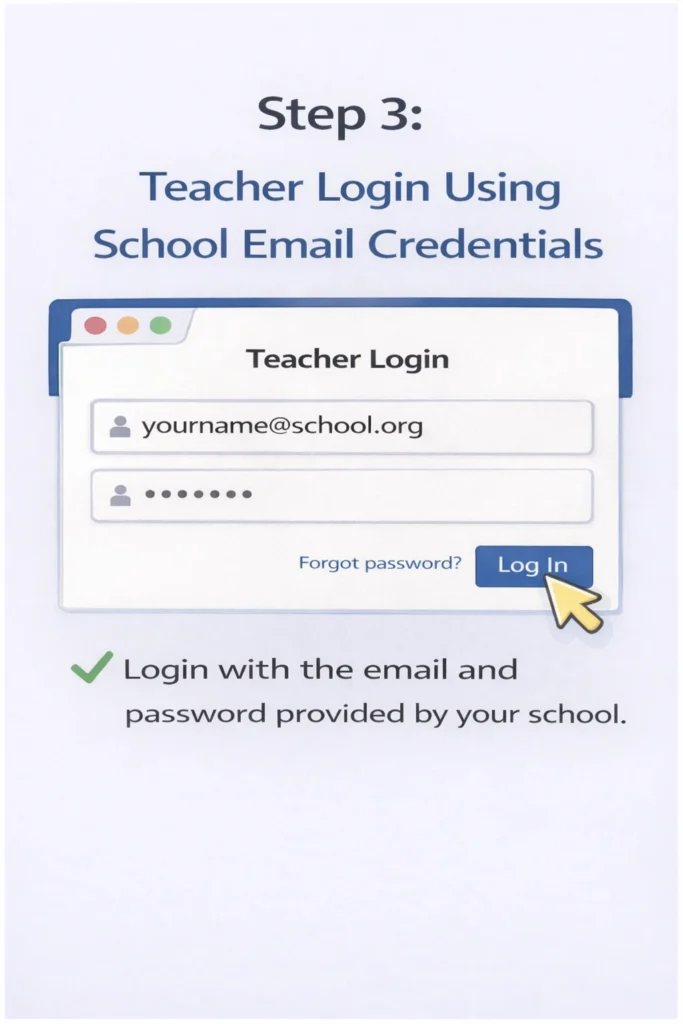
Step 3: Teacher sparx reader login using school email credentials
Teachers log in using the email address registered by the school. When first added, Sparx sends a welcome email with a secure password-setup link. Once this is completed, teachers return to the login page, confirm the school, enter their email address and password, and sign in.
If the welcome email does not arrive, it must be resent by the school administrator. Passwords cannot be set without that email link. If a password is forgotten later, the reset option on the login page sends a new link to the registered email address.
If reset emails are not received, the email address stored in the system should be checked and corrected by the school.
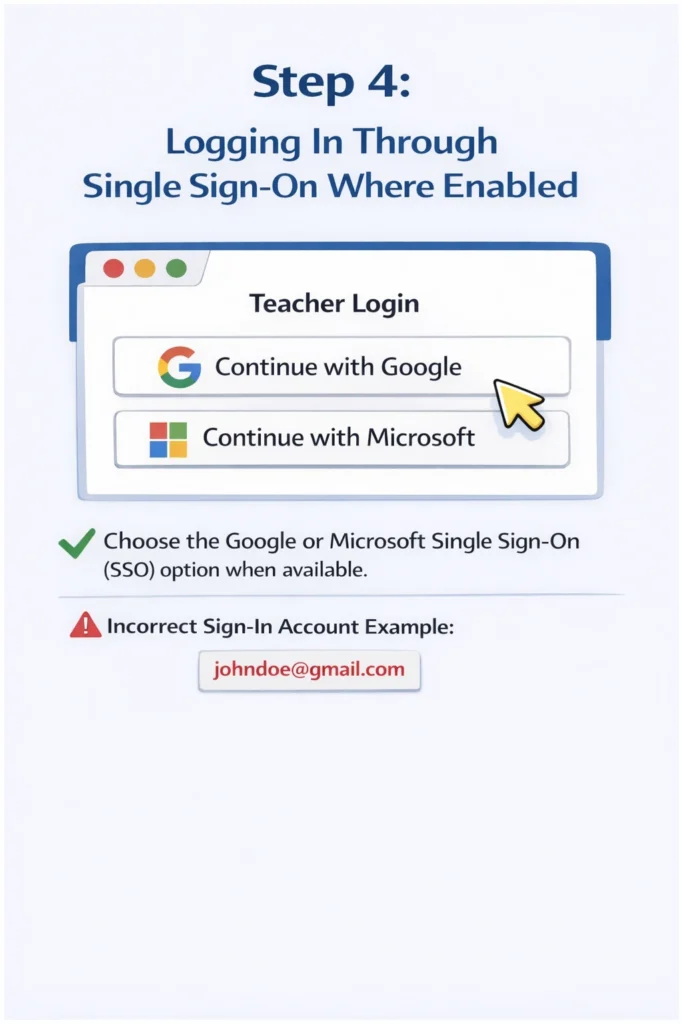
Step 4: Logging in through Single Sign-On where enabled
Some schools use Google or Microsoft Single Sign-On. In this case, teachers do not use a separate Sparx Reader password. On the login page, the option to continue with Google or Microsoft appears automatically.
Teachers must use the same school-issued account they use for other systems. If the Single Sign-On button is missing, the school has not enabled it for Sparx Reader, and standard email login applies instead.
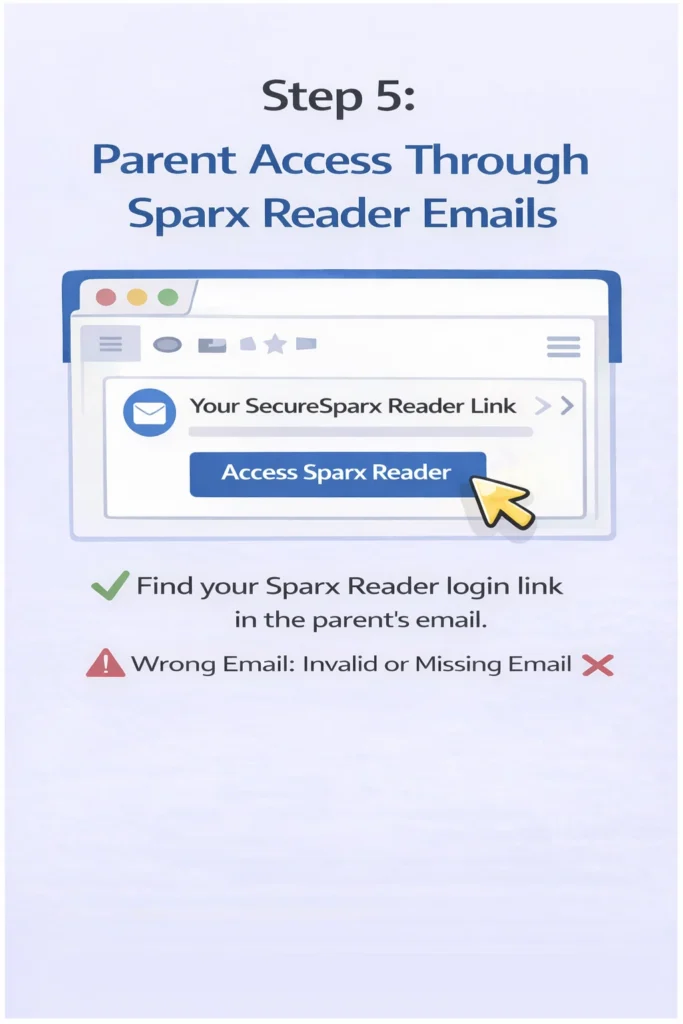
Step 5: Parent access through Sparx Reader emails
Parents do not create usernames or passwords for Sparx Reader. Access is provided through secure links sent to the parent email address stored by the school. These emails allow parents to view homework status and reading activity through the Parent Portal.
If a parent cannot access Sparx Reader, the issue is almost always that the email address is missing, incorrect, or not linked to the child’s account. This must be corrected by the school, not by the parent attempting to log in again.
Parents should use the most recent email link to ensure access remains active.
Step 6: Resolving failed Sparx Reader login attempts
If login fails, the first check should always be school selection. Most login problems are resolved at this stage. For teachers, failed access after correct school selection usually indicates a missing welcome email, an incorrect email address on record, or an expired password link.
Repeated incorrect attempts can temporarily lock access. Waiting briefly and then using the password reset option resolves this. Parents experiencing access problems should not attempt multiple logins but should confirm their email details with the school.
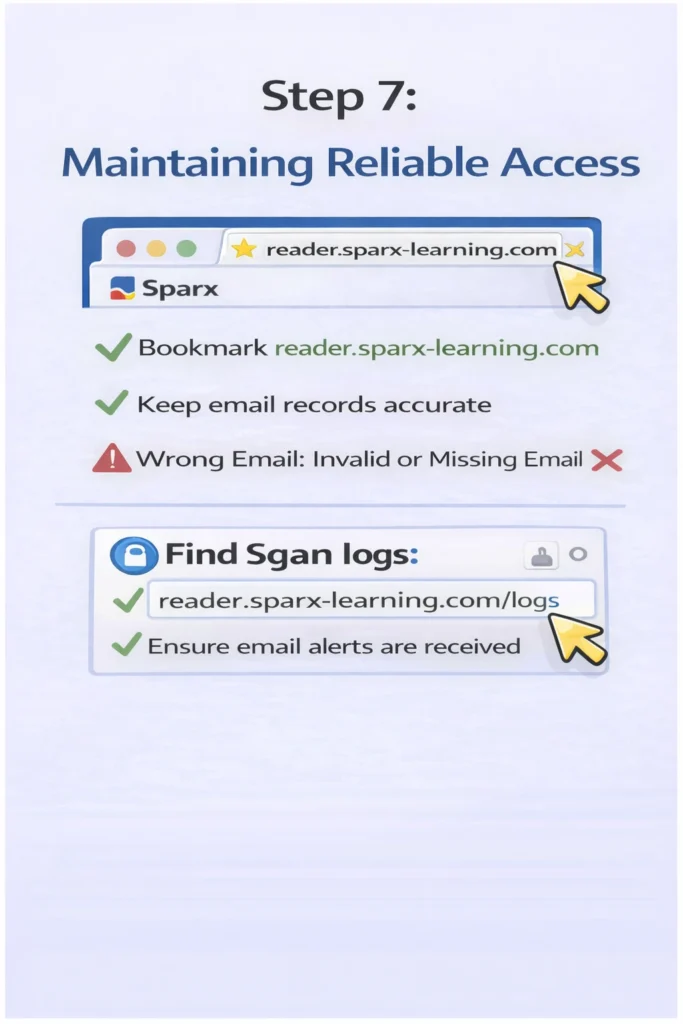
Step 7: Maintaining reliable access
Teachers should bookmark the official Sparx Reader login page and ensure their registered email remains active. Parents should regularly check their inbox and spam folder for Sparx Reader messages, as access depends entirely on email delivery.
Schools should keep staff and parent email records accurate to prevent recurring login issues.
Final login reference for parents and teachers
Sparx Reader login follows a fixed structure. Access begins at the official Reader site, requires correct school selection, and depends on verified email credentials or Single Sign-On for teachers and email-based Parent Portal links for parents. When these steps are followed correctly, Sparx Reader access remains stable and consistent.
This Sparx Reader guide is written to function as a complete login manual, allowing parents and teachers to resolve access issues without needing additional support.